Setup guide
How to Set Up and Share Timer Plus Workouts
Start with a preset or build your own workout. Set durations, rests, sets and cycles, name the exercises, and choose your cues. Follow the setup and sharing steps first; the timing example below explains the total.
Create a named workout
Start from a preset or your own plan
Write the intervals in order. Include their durations, rest periods, sets and cycles.
Set durations and repeats
Configure the time and count for each part. Adjust rest between rounds separately from the short rests inside a round.
Name the phases
Use exercise names to distinguish intervals instead of keeping every phase as Work.
Choose the cues
In audio settings, customize sounds or voice prompts, including midpoint and 3-2-1 signals. Use Ducking if you want music lowered during cues.
Check the ending
Run the timing sequence without exercising and compare it with your written total. The developer confirms that Timer Plus ends without rest after the last interval.
Follow a complete written sequence in the named-station circuit example
Keep the setup for next time
If reopening changes the setup unexpectedly, prepare a report of the steps and values
Check a change by reopening the setup
Use the options actually available
If your version and access level offer saving and editing, note the current durations, repeat count and final phase before making a change.
Change one value
Use the controls present in your version and write down the value you intend to keep. This separates one change from any other differences in the setup.
Reopen and compare
After using the available save action, reopen the setup. Compare its values with your note, including the repeat count and ending.
Describe any mismatch
If a value differs, record the original value, the intended change, the value after reopening and the actions you took. Keep the device, versions and access level with that report.
Use the ending without a final rest
For the formula and a different written ending, see the duration calculation
What is an interval timer?
An interval timer runs a sequence of timed phases, such as work followed by recovery, and can repeat that sequence. The durations, repeat count and final phase determine how long the block lasts.
Read a 20/10 × 3 sequence
- Write three 20-second work periods with two 10-second rests between them. Timer Plus ends after the last interval.
- Follow the timeline: work 0:00–0:20, rest 0:20–0:30, work 0:30–0:50, rest 0:50–1:00, work 1:00–1:20. The finish is 1:20, before any separate preparation or extra breaks.
- Match these durations and counts to the controls in your installed app. This example explains the timing; it is not a verified preset or a list of current interface labels.
- Run the sequence without exercising and check each transition and the finish.
If a transition or final cue does not match the worksheet, prepare a clear support report
For the audio conditions, use the music and timer-cue checklist
If you intend to lock the phone during the sequence, compare screen-on and screen-locked timing
Build the rest of your timing worksheet
| Part | Detail to write down |
|---|---|
| Preparation | A countdown before the first work period, if needed. |
| Work | The duration of each work period. |
| Recovery | Its duration and where it occurs. |
| Repetition | The number of work periods or rounds. |
| Grouping | Any repeated groups or extra recovery. |
| Finish | Timer Plus ends after the last interval, without a final rest. |
HIIT timing: work and recovery
Tabata timing: 20/10 and the final rest
boxing rounds: round lengths and rests
If your plan starts a task at each minute, use the EMOM minute-start example
If the sequence alternates running and walking, read about run–walk pairs and the final walk
A user’s perspective on timing
App Store review · iOS
“It’s nice having everything timed for you”
This iOS reviewer describes their own experience. Use the worksheet above to define your sequence, then check the controls and ending in your current app version.
Calculate the finish before starting
For n equal work periods with recovery only between them, total time is n × work + (n − 1) × recovery. This matches the Timer Plus ending. Use one time unit throughout and let n be a positive whole number. Add preparation and other phases separately.
A written schedule that includes recovery after every work period instead totals n × (work + recovery). That is a different ending, not a Timer Plus final-rest setting.
For equal work and rest intervals, enter your own values in the workout duration calculator
Workout duration calculator
Calculate a sequence of equal work intervals with equal rests between them. Enter whole seconds; rest and preparation can be zero. Repeats count work intervals. Preparation is added once, and there is no rest after the last interval.
Total = preparation + repeats × work + (repeats − 1) × rest.
Values are calculated in your browser. They are not sent or saved. Different interval lengths and separate breaks between sets or rounds are outside this simple calculation.
The formula and example below also work without JavaScript. Markdown, CSV and text exports include the worked example, not interactive controls.
Worked example: 30 seconds work, 15 seconds rest, 4 repeats and 10 seconds preparation
| Part | Calculation |
|---|---|
| Preparation | 10 seconds, once |
| Work | 4 × 30 = 120 seconds (2:00) |
| Rest | 3 × 15 = 45 seconds (0:45) |
| Total | 10 + 120 + 45 = 175 seconds (2:55) |
Keep the timing worksheet for the next occasion
Keep the expected total with your saved workout. Recheck it when you change durations, counts or breaks.
To connect the timing worksheet with when and how you plan to return, use a repeatable workout-planning card
Read the labels in the published Android image
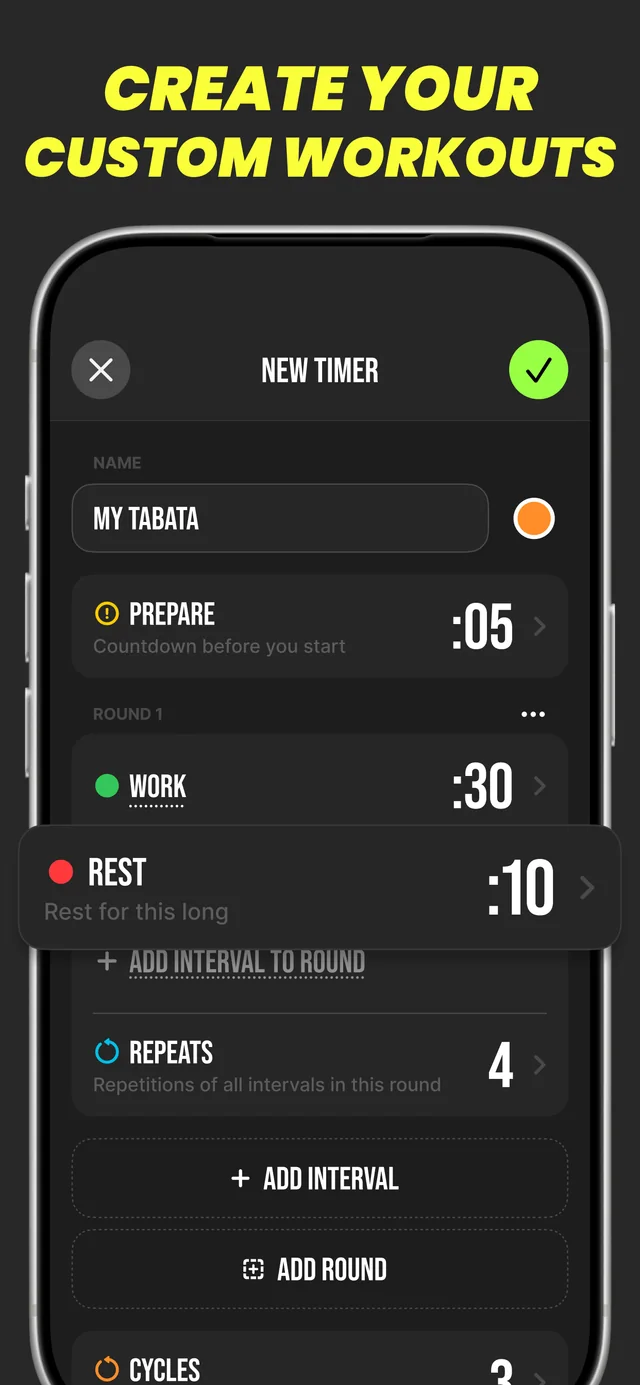
An official Google Play image retrieved November 7 and reviewed November 8, 2026 shows a New Timer screen with Prepare, Work, Rest and Repeats. Prepare is the countdown before starting; Repeats is described as repeating all intervals in that round. Its pictured values are 5 seconds, 30 seconds, 10 seconds and 4 repeats.
The image illustrates published Android labels, not the 20/10 × 3 example above. Its app build is unidentified, so it does not verify the current Android interface or the iOS controls.
Sources: Official Google Play promotional image · retrieved Nov 7, reviewed Nov 8, 2026
See the labels in the published Android New Timer image
Explore Timer Plus
Open the listing for your device to review the current app details.